 Sahil K
Your marketing lead says the landing page feels slow. Your developer says it loads fine on their laptop. PageSpeed Insights shows a 41, and nobody agrees on what that means.
It’s a common standoff, and it’s rarely a mystery. Slow sites tend to share a handful of causes, and you can fix them in a sensible order once you know which number to look at first.
Quick answer: To improve website speed, measure real-user Core Web Vitals first, then fix the biggest bottleneck: compress and properly prioritize your hero image, cut third-party scripts and unused plugins, upgrade hosting and caching, and reserve space for images and embeds. Aim for LCP under 2.5 seconds, INP under 200 ms, and CLS under 0.1.
Why website speed matters for revenue, not just rankings
Start with what your CEO cares about. Speed changes what people do on the page.
Take QuintoAndar, a Brazilian property platform. After cutting its Interaction to Next Paint by 80%, it reported a 36% year-over-year rise in conversions (web.dev case study, January 2025). That’s one company’s result, not a promise. It does show where the money sits: the moment someone tries to search, filter or buy.
Then there’s search. Google says its ranking systems use Core Web Vitals and recommends good scores, but it also says good scores don’t guarantee a top position (Google Search Central). My read: speed is a tiebreaker and a conversion lever, not a ranking button. Fix it because visitors leave slow pages, and treat any ranking lift as a bonus.
What “fast” means in 2026: the three numbers that matter
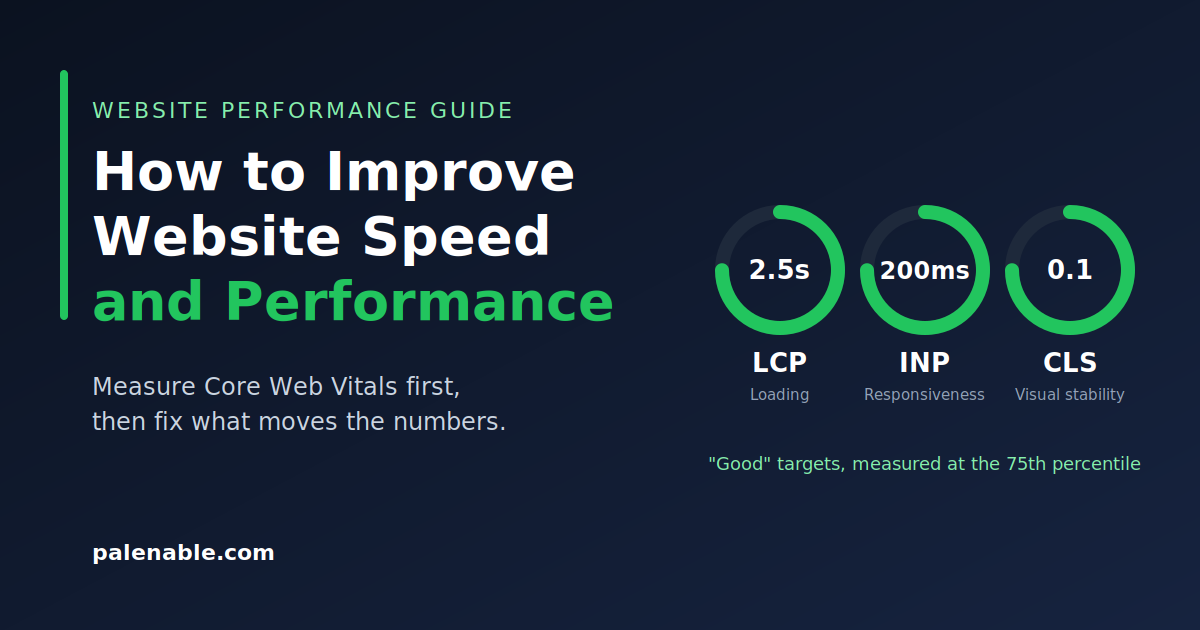
Forget a single “load time.” Nobody experiences a page as one number. Google measures three things on real visits, called Core Web Vitals, and it judges each at the 75th percentile, so at least three in four visits need to hit the good level (web.dev).
| Metric | What it tells you | Good | Poor |
|---|---|---|---|
| Largest Contentful Paint (LCP) | How fast the main content appears | 2.5 seconds or less | Over 4 seconds |
| Interaction to Next Paint (INP) | How quickly the page reacts to taps and clicks | 200 ms or less | Over 500 ms |
| Cumulative Layout Shift (CLS) | How much the page jumps around | 0.1 or less | Over 0.25 |
INP replaced First Input Delay in March 2024, so if an old audit still talks about FID, it’s out of date.
Most sites don’t pass all three. The 2025 Web Almanac, built on July 2025 data, found 48% of mobile sites and 56% of desktop sites passing every metric (HTTP Archive). If you’re failing, you’re in the majority. Passing puts you in the better half.
Measure before you fix anything
Open the Core Web Vitals report in Google Search Console, then run PageSpeed Insights on two pages: your highest-traffic page and your highest-value one. The second is usually pricing, a product page or a lead form.
Pay attention to which data you’re reading. Field data comes from real visitors. Lab data is a simulated test. A page can score 95 in the lab and still fail in the field because real visitors use older phones on flaky connections. When the two disagree, trust the field data.
The overall PageSpeed score is a lab number, and I wouldn’t put it on a KPI slide. Track LCP, INP and CLS for real users instead.
Write down a baseline for the five or six pages that make you money. You’ll need it later to prove the work paid off.
How to improve website speed: 8 fixes in order of impact
Start at the top and stop when your field data turns green. This is roughly the order in which things pay off on WordPress, WooCommerce and Shopify builds.
1. Fix your hero image first (LCP)
An image was the LCP element on 76% of mobile pages and 85% of desktop pages in the 2025 data. Your hero image or top banner very likely decides your LCP score.
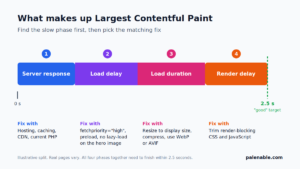
LCP has four parts: server response, the wait before the browser starts fetching the image, the download itself, and the delay before it paints. Knowing which part is slow tells you which fix to use.
- Resize it to its real display size. A 3000 pixel photo in a 1200 pixel slot is the most common mistake you’ll find.
- Use WebP or AVIF. JPG still made up 57% of LCP images and PNG 26%, while WebP sat around 11%, even though newer formats compress better.
- Add fetchpriority=”high” to the hero image. Only about 17% of mobile pages with an image LCP element did this.
- Never lazy-load it. Roughly 16% to 17% of pages still lazy-load their LCP image, which delays the exact thing visitors are waiting for. Some plugins and themes lazy-load every image, hero included. Check yours.
And skip the slider. A static hero with one clear message loads faster and usually communicates better.
2. Audit third-party scripts and plugins
This is where most mid-sized business sites lose the fight. Chat widgets, tag managers, heatmaps, A/B tools, social embeds, cookie banners and marketing forms all ship JavaScript. Each one was added for a good reason by someone who may have moved on.
The data fits the suspicion. The 2025 Web Almanac found median mobile Total Blocking Time up 58% in a year, to about 1,916 milliseconds, which points to heavier JavaScript work. Total Blocking Time is a lab metric for how long the page is too busy to respond, and it tends to move with INP.
Here’s the practical routine:
- List every script on your key pages. The Network tab in Chrome DevTools or the PageSpeed Insights audit will show them.
- For each one, write down who owns it and what business result it supports.
- If nobody can answer, remove it and see who complains.
On WordPress, do the same with plugins: deactivate them one at a time on a staging copy and re-test. On Shopify, look for leftover code from apps you’ve uninstalled, since some leave snippets in the theme.
If your site feeds Salesforce through web-to-lead forms, tracking scripts or chat, include those in the audit. They’re worth keeping, but they should load after the page is usable, not before.
3. Fix hosting, caching and server response
If the server is slow to answer, everything after it runs late. The Almanac counts a time to first byte under 0.8 seconds as good, and only 44% of mobile sites got there in 2025.
Check these in order:
- Page caching, so WordPress isn’t rebuilding the same page for every visitor.
- Object caching (Redis or Memcached) for WooCommerce and membership sites, where cart, checkout and account pages can’t be fully cached.
- A CDN, so files come from near the visitor. If your audience spans the US, UK, Middle East and India, this matters more than most owners expect.
- A current PHP version and a host that isn’t packing hundreds of sites onto one server. Cheap shared hosting often looks fine until traffic spikes.
If you’d rather hand this part over, we build and look after WordPress and Shopify sites at Palenable, including WooCommerce stores. Send us your slowest important page and we’ll tell you where we’d start. Talk to our team.
4. Stop the page from jumping (CLS)
Layout shift is the most fixable metric and the one people ignore most. The usual culprits are images without dimensions, late-loading fonts, and banners that push content down.
In 2025, 62% of mobile pages had at least one image without explicit dimensions. Set width and height attributes, or use CSS aspect-ratio, so the browser reserves the space before the image arrives.
Fonts need the same care. 87% of mobile pages use web fonts, yet font preloading shows up on only around 15% to 16% of pages. Preload the one or two fonts used above the fold, and drop the weights you don’t use.
Cookie notices, promo bars and chat bubbles should either reserve their space or overlay the page instead of shoving it down.
5. Make clicks and taps respond fast (INP)
INP is about what happens after the page loads. A visitor taps “Add to cart” or opens a filter and nothing happens for half a second. That’s an INP problem, and it nearly always means too much JavaScript running at once.
On mobile, 77% of sites had good INP in 2025, but secondary pages did worse than home pages (69% good versus 80%), probably because filters, carousels and forms live deeper in the site. So test your product listings, search and checkout, not just the homepage.
Defer scripts that aren’t needed for the first interaction. Break long tasks into smaller pieces. QuintoAndar’s team found the slow interactions, then restructured long-running work so the browser could respond in between.
6. Trim and defer CSS and JavaScript
Multipurpose themes and page builders load code for features you never use. On builds with Elementor or WoodMart, switch off unused modules and widgets in the settings before you reach for a minification plugin.
Then minify, defer non-critical JavaScript and inline the critical CSS. One warning from experience: aggressive “delay all JavaScript” settings can break menus, carts and forms. Test your checkout every single time.
7. Use the browser’s built-in speed-ups
Speculation Rules let the browser prefetch or prerender pages a visitor is likely to open next. WordPress 6.8 includes speculative loading, and the Almanac suggests that helps explain stronger adoption on smaller sites. The same chapter warns that anything prefetched and never used is wasted, so keep the rules conservative on stores and large sites.
Also confirm that text compression (Brotli or gzip) and HTTP/2 or HTTP/3 are switched on. Your host or CDN usually handles this.
8. Set a performance budget and watch it
Sites don’t get slow in one go. They get slow one “quick” marketing script at a time.
Set limits for your key pages: LCP under 2.5 seconds and INP under 200 ms. Add one rule: no new script or plugin goes live without a speed check. Look at the Search Console report monthly. It’s the same logic as keeping a Salesforce org tidy: things only stay clean when someone owns them.
Quick diagnosis: what you’re seeing and where to start
| What you’re seeing | Likely cause | Start with |
|---|---|---|
| Slow on mobile, fine on desktop | Heavy hero image, too much JavaScript for phones | Fixes 1 and 2 |
| Page loads, then jumps | Missing image sizes, late fonts, banners | Fix 4 |
| Page looks ready but buttons lag | Long JavaScript tasks, third-party scripts | Fixes 2 and 5 |
| Even a plain blog post is slow | Slow server response, no caching | Fix 3 |
| Fine in the lab, failing in Search Console | Real visitors on slower devices and networks | Test on a mid-range phone, trust field data |
| WooCommerce cart or checkout is slow | Uncacheable pages, heavy plugins, no object cache | Fixes 3 and 6 |
A four-week plan
- Week 1: Record field baselines for your five or six money pages. List every script and plugin with an owner.
- Week 2: Fix the hero image. Remove or defer scripts nobody can justify.
- Week 3: Sort out caching, CDN and hosting. Clean up CSS and JavaScript.
- Week 4: Fix layout shifts and slow interactions on key templates. Set the budget and monthly check.
Search Console reflects real visits over time, so expect a lag before the report turns green.
When to bring in a specialist
Do it in house if your site is a fairly standard WordPress or Shopify build and a developer has real hours to spare. Bring in help if you’re failing INP on a custom build, your store has heavy custom features, or you’ve fixed the obvious things and the numbers haven’t moved.
At Palenable, we build and look after WordPress and Shopify sites, and we connect them to Salesforce when that’s part of the picture. If your site is slow and you can’t tell whether it needs a quick fix or a rebuild, send us the URL of your slowest important page. We’ll tell you straight what we’d change first. Book a consultation.
FAQ
What is a good website load time?
Google doesn’t use one single load time. It focuses on Largest Contentful Paint, which tracks how quickly the main content appears, and treats 2.5 seconds or less as good. That’s measured at the 75th percentile of real visits.
Does website speed affect SEO?
Yes, in a limited way. Google says its ranking systems use Core Web Vitals and recommends good scores, but it also says good scores don’t guarantee top positions. Treat speed as one part of page experience, alongside content quality.
Why is my website slow on mobile but fine on desktop?
Phones have weaker processors and less stable connections. In the 2025 Web Almanac, 74% of desktop sites had good LCP versus 62% on mobile, and 97% had good INP versus 77%. Heavy hero images and JavaScript hurt phones first, so test on a mid-range phone, not just your laptop.
What is a good PageSpeed Insights score?
A score of 90 or above shows as green, but it comes from a lab simulation. What matters is whether your real-user Core Web Vitals pass, shown as field data at the top of the report. Chasing a perfect 100 often costs more than it returns.
How long does it take to improve website speed?
Image and script clean-ups can take a few days. Hosting, caching and code changes usually take a few weeks. Search Console reflects real visits over time, so expect a further delay before improvements show.
How much does website speed optimization cost?
It depends on your platform, how many page templates you have, how much custom code is involved and what the audit finds. A site that needs image and script clean-up costs far less than one that needs a theme rebuild. An audit of your key pages is the quickest way to get a realistic estimate.
Publishing notes (remove before posting)
SEO title (57 characters): How to Improve Website Speed and Performance (2026 Guide)
Alternatives: How to Improve Website Speed: A Practical Guide for 2026 (56) | Improve Website Speed: 8 Fixes in the Order That Works (54)
Meta description (142 characters): Learn how to improve website speed and performance in the right order: measure Core Web Vitals, then fix images, scripts, hosting and caching.
URL slug: /how-to-improve-website-speed-and-performance
Primary keyword: how to improve website speed
Secondary keywords: website performance optimization, Core Web Vitals, improve page load time, WordPress speed optimization, Shopify speed optimization, how to improve LCP, improve INP, website speed optimization services